Free 8-bit photo converter
Free 8-Bit Photo Converter
Your photos. A few pixels. A whole new look.
Make retro portraits, pixel avatars and colourful little worlds. Explore all eight looks, find your pixel size, and save your creation.
 ORIGINALPICO-8
Eight retro looks
Game Boy, NES, CGA and more classic palettes.
Your photos stay private
All processing happens in your browser.
Instant results
Real-time preview as you adjust settings.
Guides & tutorials
Want to get more out of the converter? I've written a set of free, illustrated guides covering everything from turning a photo into pixel art to choosing the right retro palette, getting pixel size right, the Game Boy Camera look, and exactly what the tool does to your photo under the hood.
How to Turn a Photo Into Pixel Art
A complete beginner's walkthrough, from picking the right photo to exporting a clean 8-bit image, with a troubleshooting table.
COMPARISONChoosing a Retro Palette
Game Boy, NES, C64, PICO-8 and more, compared side by side on the same images.
TUTORIALHow to Make an 8-Bit Avatar
Create a retro profile picture that stays sharp at small sizes on Discord, Twitch and beyond.
TUTORIALThe Game Boy Camera Look
Recreate the 1998 Game Boy Camera aesthetic from any photo: 128 by 112, four shades, step by step.
EXPLAINERPixel Size Explained
What that slider is actually doing, and how chunky to go for faces, logos and everything else.
HISTORYThe History of 8-Bit Graphics
Why old machines looked the way they did, and why the blocky look refuses to die.
GAME DEVPixel Art for Game Development
Using pixelated photos as quick placeholders and mock-ups while you build a game.
EXPLAINER8-Bit vs 16-Bit vs Pixel Art
The terms get mixed up constantly. Here is what each one actually means.
EXPLAINERHow the 8-Bit Converter Works Under the Hood
Exactly what happens to your photo, in three steps, and why it never leaves your browser.
What is 8-bit pixel art?
8-bit pixel art is the blocky, limited-colour visual style made famous by 1980s and early-1990s video game consoles and home computers: the Nintendo Entertainment System (NES), the Game Boy, the ZX Spectrum, the Commodore 64, and IBM's early CGA graphics. Back then, hardware could only display a handful of colours at once and had very little memory, so artists worked pixel by pixel within tight limits. Those constraints became a look all their own: chunky pixels, bold outlines, and punchy, restricted palettes that still feel warm and nostalgic decades later.
An 8-bit photo takes that same aesthetic and applies it to a modern image. Instead of drawing every pixel by hand, this 8-bit converter analyses your photo, shrinks it down into large square pixels, and then maps every colour to the nearest colour in a classic console palette. The result is an authentic retro pixel-art version of your original picture.
How to convert a photo into 8-bit pixel art
Turning a picture into an 8-bit image takes just a few seconds, and because it all runs in your browser, your photo never leaves your device. Here's the quick version:
- Select your photo. Use the Select image control at the top of the page, or drag and drop a file straight onto the canvas. JPG, PNG, WebP and most common image formats all work.
- Choose a pixel size. Drag the pixel-size slider to control how chunky the effect is. A small value keeps fine detail; a larger value gives a bolder, more retro, low-resolution look.
- Pick a colour palette. Select a classic palette such as Game Boy or NES, or keep your image's original colours while still pixelating it.
- Preview instantly. The 8-bit generator re-renders your image in real time as you adjust the settings, so you can dial in exactly the look you want.
- Download your creation. Click Download 8-Bit PNG to save the finished pixel-art picture as a PNG, ready to share or use anywhere.
The colour palettes explained
The retro palettes take inspiration from classic computers and consoles, alongside PICO-8, monochrome and your original colours. They reproduce a colour style rather than every hardware restriction. Choosing a different palette completely changes the mood of your pixel art.
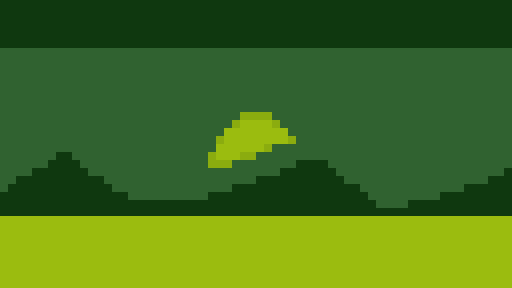
Game Boy
The classic four-shade green palette from Nintendo's 1989 handheld. Everything is rendered in tones of olive and lime green, giving that unmistakable pocket-console look. Great for portraits and high-contrast subjects.
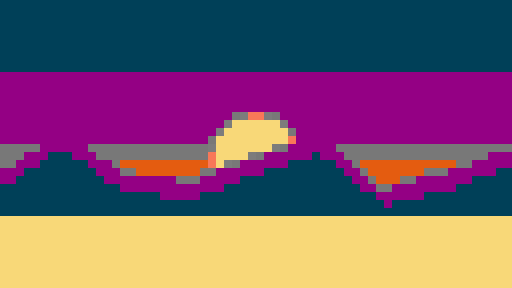
NES
A 55-colour palette inspired by the Nintendo Entertainment System, the console behind Super Mario Bros. and The Legend of Zelda. It offers plenty of colour while keeping that distinctive, slightly muted 8-bit console feel, and it keeps photos the most recognisable of any palette here.

ZX Spectrum
The bright, punchy 15-colour palette from Sinclair's legendary British home computer, which defined a generation of UK gaming in the 1980s. Bold primaries and high contrast give images an energetic, unmistakably retro character.
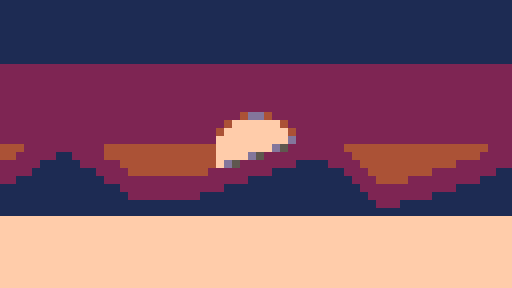
PICO-8
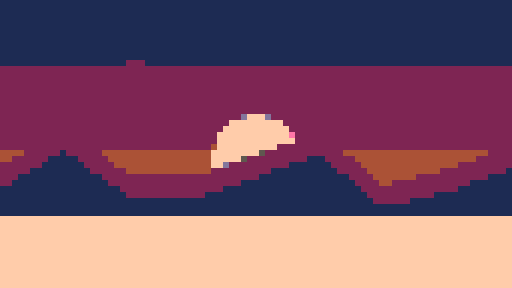
The beloved 16-colour palette from the PICO-8 fantasy console. Its warm, carefully balanced colours are a favourite of modern indie pixel artists, making it ideal for friendly, contemporary-looking pixel art.

Commodore 64
The 16-colour palette of the Commodore 64, one of the best-selling home computers ever made. Known for its distinctive warm browns, soft blues and bright accents. It's my personal favourite, and perfect for a cosy 8-bit picture.
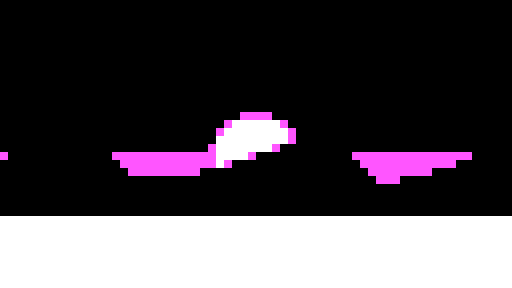
CGA
The famous four-colour palette from IBM's Colour Graphics Adapter: black, cyan, magenta and white. This early-PC combination is instantly recognisable and gives images a bold, graphic, almost neon quality.

Black & White
A simple two-tone monochrome palette that reduces your photo to pure black and white pixels, echoing the earliest computer displays and 1-bit art.
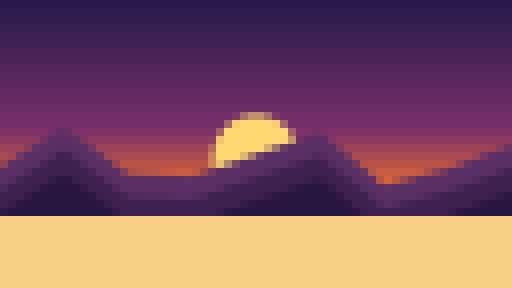
Original colours
Prefer to keep your photo's own colours? This mode applies the pixelation effect while preserving your image's existing palette, for a modern take on the retro look.
The six named retro palettes have their own reference pages with the exact hex and RGB values, the history of the machine, and the same test image converted with each one so you can compare them properly. Start with the palette overview.
Made with a few good colours
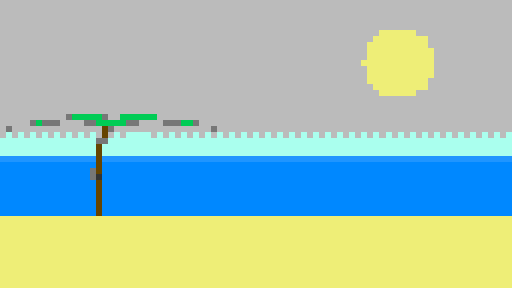
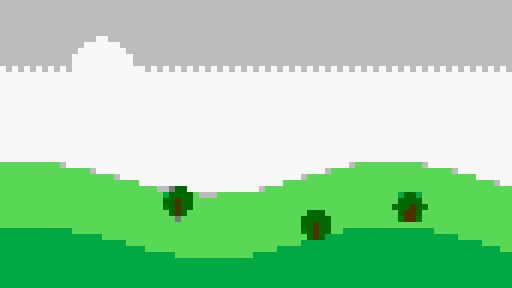
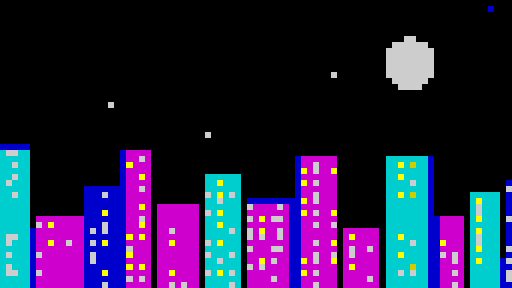
Original illustrated scenes from the gallery, processed with the converter's palettes. Explore the examples, then try your own photo.
Tips for the best results
- Start with a clear subject. Photos with a single, well-lit subject and a simple background convert best. Busy scenes can turn muddy once colours are reduced.
- Match pixel size to detail. For faces and logos, a smaller pixel size keeps them recognisable. For abstract or bold images, go chunkier for maximum retro impact.
- Experiment with palettes. The same photo looks completely different in Game Boy green versus CGA cyan-and-magenta. Try several before you download.
- High contrast helps. Palettes with few colours (Game Boy, CGA, Black & White) reward images that already have strong light and dark areas.
What can you make with an 8-bit converter?
I use it for all kinds of things, and it's more than a novelty. A few ideas to get you started:
- Profile pictures and avatars with a retro-gaming personality for social media, Discord or forums.
- Game development mock-ups and placeholder art for indie and hobby projects.
- Stickers, badges and print art that celebrate classic console aesthetics.
- Wallpapers and banners with a nostalgic 8-bit look.
- Fun edits of pets, friends and selfies reimagined as pixel-art characters.
Frequently asked questions
Is the 8-bit photo converter free?
Yes, completely free. No sign-up, no watermark, and no limit on how many images you convert.
Are my photos uploaded to a server?
No. Everything happens locally in your browser using the HTML5 Canvas API, so your images never leave your device. That was the whole point for me: it stays private and it's safe to use with your personal photos.
What image formats can I use?
You can convert JPG, PNG, WebP, GIF and most other common image formats. Choose an image up to 24 megapixels, with each side no larger than 16,384 pixels. The finished 8-bit image is saved as a still PNG.
Does it work on mobile?
Yes. It works on phones, tablets, laptops and desktops in any modern browser. Just tap to upload, then download the result.
Can I use the results commercially?
You own whatever you create from your own images. Make sure you have the rights to any photo you upload before using the converted version publicly.
Fancy a game?
I built a little sliding puzzle to go with the converter. Shuffle the pixel scene and slide the tiles back into place, or load one of your own photos and turn it into an 8-bit puzzle. Three difficulty levels, and your best score is saved.
8-Bit Slide: a free retro puzzle game, right in your browser.
PLAY 8-BIT SLIDEYou can also convert your name into 8-bit pixel text in the same retro palettes, with a transparent background option and a history of the names you've made.
8-Bit Text Generator: your name as 8-bit pixel art.
MAKE YOUR NAME 8-BIT