How the 8-Bit Converter Works Under the Hood
I get asked how the converter works often enough that it deserves a proper answer. It's three steps, none of them magic, and knowing them explains every quirk you'll see in the results: why the C64 turns some skies grey, why Game Boy ignores colour completely, and why the tool never needs to upload anything.
By Richard Wallace · Published 5 September 2026
Step 1: shrink the image into blocks
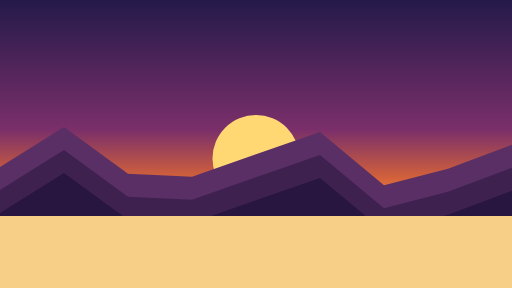
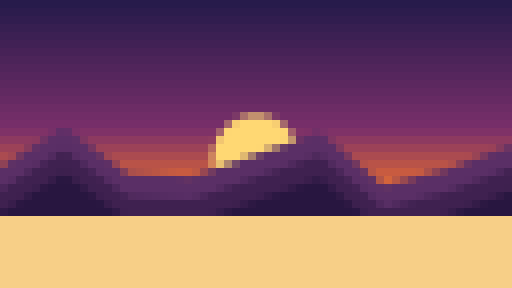
The pixel size you choose is the width of each block. The tool works out how many blocks fit across and down your photo, rounding up, then draws the photo into a tiny canvas of that size. Drawing a large image into a small canvas makes the browser average the colours of all the original pixels that fall inside each block, so each block ends up with the mean colour of the area it covers. This is downsampling, and it's the same thing that happens when you make a thumbnail.
At this point a 1200 × 900 photo at pixel size 10 has become a 120 × 90 image. That's the actual pixel art. Everything after this is either recolouring it or scaling it up so you can see it.
Step 2: map every block to the palette
If you've chosen Original colours, this step is skipped and the averaged colours are kept. Otherwise every block's colour is replaced by one from the chosen palette. There are two methods, depending on the palette.
Nearest colour by distance
For NES, ZX Spectrum, PICO-8, Commodore 64 and CGA, the tool treats each colour as a point in three-dimensional space, with red, green and blue as the axes. It measures the straight-line distance from the block's colour to every colour in the palette and picks the closest one. It's a simple, fast rule, and it's the standard approach for palette conversion without dithering.
This rule explains the palette quirks you'll notice:
- The C64 has three neutral greys. A muted colour, say a dusky blue-purple sky, is often closer to a grey than to any of the saturated blues, so it goes grey.
- The Spectrum has only primaries and secondaries, so every soft colour is dragged to a vivid one.
- CGA has four colours, so the choice is really "dark or light, and if light, cyan-ish or magenta-ish".
- The NES, with 55 colours spread across four brightness rows, usually has something close by, which is why it keeps photos most recognisable.
Distance in RGB doesn't match how the eye judges colour perfectly. Two colours the same RGB distance apart can look more or less different to a person depending on their hue. Perceptual colour spaces would fix that at the cost of speed and complexity, and for a tool meant to be instant and to run on a phone, plain RGB is the right trade.
Brightness bands
For Game Boy and Black & White, nearest colour would be pointless: four greens are all "near" everything. So these two palettes ignore colour and use brightness alone, averaging the red, green and blue values of the block into one number from 0 to 255.
| Palette | Rule |
|---|---|
| Game Boy | Below 64 darkest green; 64 to 127 dark; 128 to 191 light; 192 and above lightest |
| Black & White | Below or equal to 128 black; above 128 white |
Because these thresholds are fixed, the exposure of your photo matters much more with these two palettes than with the others. A photo that's mostly mid-tones will land almost entirely in the two middle greens. That's why the Game Boy Camera guide tells you to boost contrast first.


Step 3: scale it back up with hard edges
The small palette-mapped image is then drawn back onto a canvas the same size as your original, with the browser's image smoothing switched off. That's what gives you square blocks with crisp edges instead of a blurry mess. The download is this full-size canvas as a PNG, so it's the same dimensions as the photo you started with. If you want the genuinely tiny version, one pixel per block, resize the download by the pixel size using nearest-neighbour resampling in an image editor.
Why there's no dithering
Dithering scatters two palette colours in a pattern so that, from a distance, they blend into a colour the palette doesn't have. It's how real 8-bit artists got gradients out of four colours, and the Game Boy Camera did it automatically. The converter deliberately doesn't. Partly that's simplicity, but mostly it's taste: dithering on a photo tends to look like noise unless it's done carefully, and the clean, flat look reads more clearly as pixel art at small sizes, which is where most converted photos end up. It's the most requested feature, so it may arrive as an option one day.
Why nothing is uploaded
Every step above runs in your browser using the HTML5 canvas, which is a drawing surface built into every modern browser and one that JavaScript can read pixel data from. Your photo is read from your device straight into the page, processed there, and drawn to a canvas on the page. There's no server involved in the conversion at all, and there's no code on the site that sends image data anywhere. The download is generated from the canvas on your device too. That was the whole point when I built it: I wanted something I'd be happy to use with my own photos, and that meant no uploads. It also means it works offline once the page has loaded, and it's why a large photo converts as quickly on a laptop as it would on a fast server.
The details, for the curious
| Setting | Value |
|---|---|
| Pixel size range | 2 to 40 |
| Block count | Width and height divided by pixel size, rounded up |
| Downsampling | The browser's own image scaling, which averages the pixels in each block |
| Palette mapping | Nearest colour by RGB distance, or brightness bands for Game Boy and Black & White |
| Dithering | None |
| Upscaling | Nearest neighbour, image smoothing off |
| Output | PNG at the original dimensions, preserving source transparency |
| Where it runs | Entirely in your browser; no uploads |
Now you know what the buttons do. Go and press them.
OPEN THE CONVERTERFrequently asked questions
Does the 8-bit photo converter upload my photos?
No. The whole conversion runs in your browser using the HTML5 canvas. Your photo is never sent to a server and the download is generated on your device.
How does the converter choose colours?
For most palettes it picks the palette colour closest to each block in RGB space. For Game Boy and Black and White it uses the brightness of the block and fixed thresholds.
Why is there no dithering?
Dithering on photos tends to look noisy, and the flat look reads more clearly as pixel art at small sizes. It is the most requested feature and may be added as an option.
◀ ALL GUIDES